New Blogger Errors That Stall Your Site Before It Grows
New Blogger Errors That Stall Your Site Before It Grows
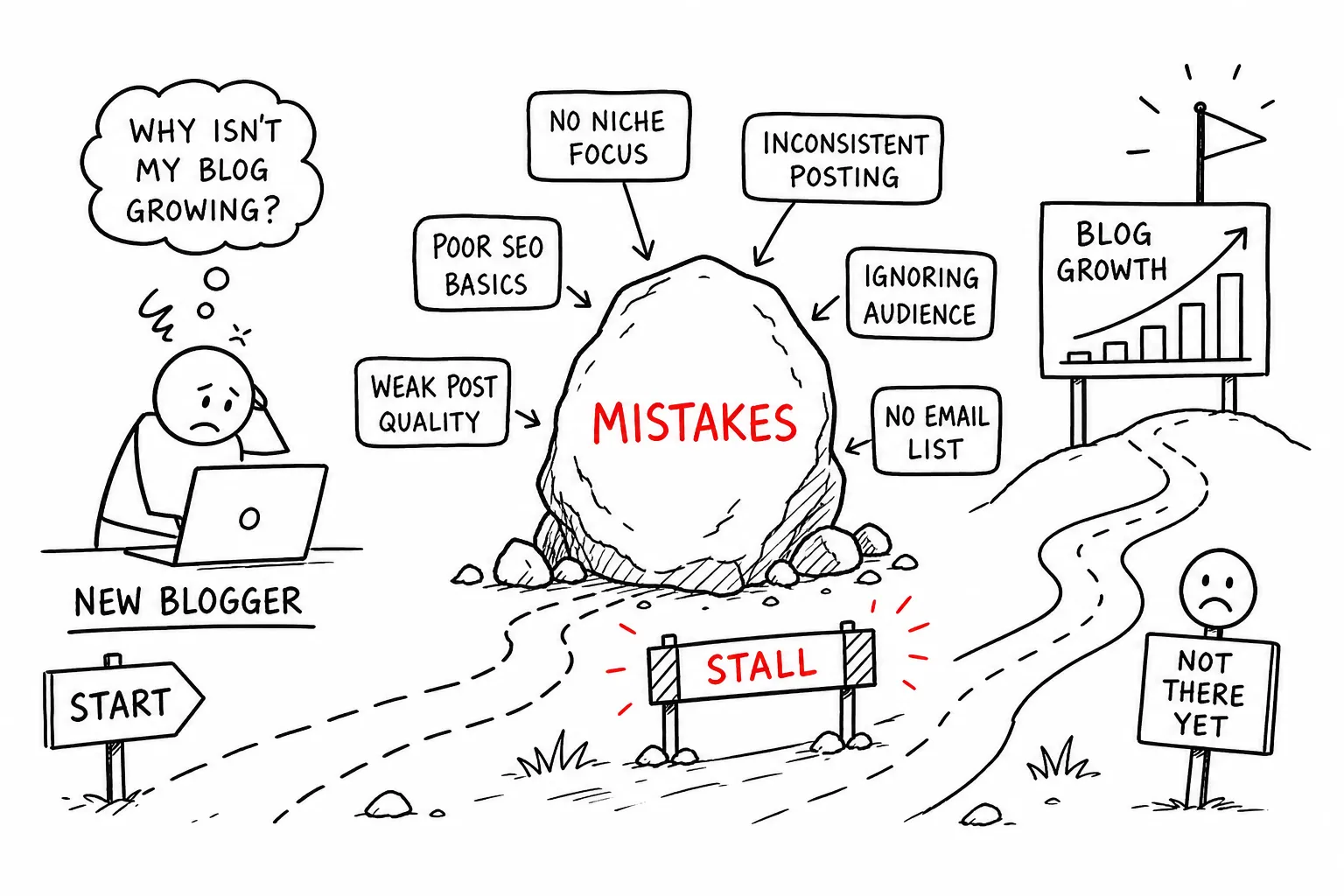
You published your first post, waited a few days, opened Google Search Console for the first time, and were immediately staring at a wall of messages you didn't recognize. "Page with redirect." "Alternate page with proper canonical tag." Maybe your homepage even displayed "No Posts Found" when you were certain the post went live. Nobody warned you this was coming, and nothing about it felt obvious when you were just trying to get your blog off the ground. These are common new blogger errors, and they have straightforward fixes.
These aren't signs of a broken blog. They're the typical early experience for most bloggers using the Blogger platform, and they're almost always fixable without deep technical knowledge once you understand what's actually driving them. The confusion these errors create is exactly what sends new bloggers spiraling before they ever publish post number two. At The Growth Engine, this phase of early technical friction is something we cover specifically because it's the gap between starting a blog and actually growing one. Work through each error below, what causes it and the steps to clear it up.
Why Blogger's platform surprises new creators with technical noise
Most beginners expect a simple loop: write, publish, get traffic. Within the first week, Search Console surfaces a list of unfamiliar status messages, and it feels like something has gone wrong. Nothing has gone wrong. What you're experiencing is platform behavior, not user failure.
Blogger is a fully hosted platform with automatic mobile redirects, built-in robots handling, and a template-based canonical system. All of these default behaviors generate warnings in Search Console that look alarming but are often routine. Other platforms, including self-hosted options, typically expose more manual controls, which means fewer automatic behaviors but more configuration work upfront. Blogger handles things for you, and sometimes what it handles generates noise you weren't expecting.
The bigger risk isn't the warnings themselves. It's ignoring them for weeks and allowing cosmetic issues to compound into real blog indexing problems. The goal is to learn quickly which messages require action and which ones you can safely leave alone.
New blogger errors explained: the ?m=1 redirect in Search Console
Blogger automatically redirects mobile visitors to a version of every page with ?m=1 appended to the URL. When Google's smartphone crawler follows that redirect, it notices that the ?m=1 URL's canonical tag points back to the desktop version, creating a circular signal. Google follows the mobile URL, sees the canonical pointing elsewhere, and flags it as "Page with redirect" in the Coverage report. This Blogger redirect error is the most common technical complaint new Blogger users encounter.
In many cases, this is a false positive. Run the URL Inspection tool in Search Console and test the live URL. If it returns an HTTP 200 OK status, the page is reachable, though a 200 response alone doesn't confirm the URL is indexed. Check the "URL is on Google" status within the URL Inspection result to confirm actual indexing before assuming the page is visible in search. When the inspection result shows the page is properly indexed, the warning is a side effect of Blogger's internal redirect mechanism, not evidence of a broken page. In that case, you can click "Validate Fix" and move on without touching a single line of code.
If the error is causing real indexing problems, meaning the URL Inspection tool shows the page isn't indexed, you have two reliable options. The first, and most effective for SEO, is correcting the canonical tag directly in the Blogger theme HTML. Go to Theme, click the arrow next to "Customize," select Edit HTML, find the existing tag, and replace it with a version that strips ?m=1 and ?m=0 from the canonical URL. The second option, which requires no HTML editing, is switching your mobile template setting to "Desktop" under Theme settings. This stops Blogger from appending ?m=1 to mobile URLs entirely. Start with the mobile template fix if you're not comfortable in HTML, then move to the canonical tag edit once you're more familiar with the theme structure.
"Alternate page with proper canonical tag": panic button or not?
This status message sends new bloggers into a tailspin, but it's actually a confirmation that the system is working correctly. Google found a duplicate or variant URL, saw the canonical tag pointing to the preferred version, and chose to index the correct page. You don't need to fix anything when this is the case.
The one situation where you should act is when the page you actually want indexed is being excluded. You can verify this with the URL Inspection tool. Enter the URL you want indexed and check which URL Google selected as canonical in the report. If Google picked a version you didn't intend, for example, the ?m=1 version rather than the desktop URL, then the canonical tag is mispointed and needs correction.
To fix a mispointed canonical in Blogger, go into the theme HTML and confirm that only one canonical tag exists in the section. Make sure it points to the exact desktop URL without any trailing parameters. Multiple canonical tags in the same template send conflicting signals to Google and create the exact problem you're trying to solve. This fix connects directly to the ?m=1 section above since both issues often share the same root cause.
"No Posts Found" and posts that vanish after publishing
This error catches new bloggers off guard because the post clearly exists in the dashboard. The most common cause is the Blog Posts widget configuration in Blogger's Layout section. If the widget is set to display only specific labels, or the post count is set too low, new posts simply won't appear on the homepage. Go to Layout, click Edit on the Blog Posts widget, remove any label filters, and set the post count to a reasonable number such as 10. Save and reload your blog in an incognito window.
The second most frequent culprit is post status. Check your Posts dashboard and confirm the post shows "Published" rather than "Draft" or "Scheduled." A scheduled post that hasn't hit its publish time yet will look ready in the editor but won't appear on the live site. Browser cache is another trap: your browser may be rendering an older version of the page. Opening the blog in an incognito window or doing a hard refresh with Ctrl+F5 solves this quickly.
Formatting errors are a less obvious cause that's easy to miss. When you paste content from an external source like Google Docs or another website, hidden HTML often comes along for the ride. Switch to HTML view in the Blogger editor, look for any broken or malformed code, and remove it. Adding a "read more" break after the first paragraph often resolves display issues caused by posts not rendering correctly in the homepage feed.
Blogger settings that silently block Google from your content
Custom robots.txt is the most common hidden reason pages never get indexed, and it's almost always an accident. A single misplaced Disallow rule, especially Disallow: /*?m=1 without a corresponding Allow: /, can block Google's smartphone crawler from reaching your content entirely. The safest move for a new blogger is to turn custom robots.txt off completely and return to Blogger's default. The default configuration handles mobile crawling correctly without any manual rules.
Two other settings get configured during initial setup and then forgotten: "Visible to search engines" under Privacy, and Reader access under Settings. If "Visible to search engines" is set to "No," or Reader access is set to anything other than "Public," no amount of canonical-tag fixing will matter because Google can't reach the site at all. Navigate to Settings in your Blogger dashboard, confirm both options are set to public and visible, and move on.
HTTPS settings are worth checking once and then leaving alone. In Blogger's Publishing settings, enable both HTTPS availability and HTTPS redirect. This ensures all URL variations point to one canonical version and avoids stacking redirect chains that trigger "Page with redirect" errors in Search Console. Enable HTTPS availability and HTTPS redirect early and avoid unnecessary changes unless you're actively troubleshooting.
Building habits that prevent new blogger errors from compounding
Bloggers who open Search Console early catch these issues before they become patterns. Add your blog as a property in Search Console before you publish your second post, verify ownership using the HTML tag method, and submit your sitemap URL right away. According to Google Search Console documentation, the sitemap for a Blogger site typically follows this format: yourblog.com/sitemap.xml. Submitting it immediately tells Google where to find your content rather than waiting for it to be discovered organically.
Build a three-step check into your publishing routine. First, confirm the post status shows "Published" in the Posts dashboard. Second, use the URL Inspection tool to test the live URL and request indexing. Third, check the Coverage report weekly for any new error types that appear. These three steps are quick to run and catch the vast majority of the issues covered in this article before they have a chance to drain your site's indexing momentum.
The early technical phase of blogging is where most people quietly give up, not because the problems are unsolvable, but because nobody explained what they were looking at. The Growth Engine exists specifically for this stage: getting past the initial friction, building a consistent publishing habit, and developing an audience without needing a technical background to diagnose what's actually wrong. Treat this phase as foundation work, because it is. Bloggers who sort these settings out early spend the rest of their time writing instead of troubleshooting.
The real takeaway from your first months of blogging
Most early technical problems on Blogger aren't caused by bad writing or a weak niche. They're caused by platform defaults that nobody explains upfront and Search Console warnings that look scarier than they are. The new blogger errors covered here, the ?m=1 redirect, the canonical tag warning, "No Posts Found," and a misconfigured robots.txt, are fixable once you know what you're looking at. Many have no-code solutions; a few require a careful HTML edit.
The goal isn't perfection from day one. It's catching these issues before they quietly stall your site's indexing for months. Use the URL Inspection tool regularly, keep your Blogger settings at their defaults until you understand what each one does, and treat Search Console as a diagnostic tool rather than a judgment report.
Every blogger working through this stage is building a foundation that either holds or cracks under growth. Getting these new blogger errors resolved early frees up your attention for what actually moves the needle, consistent publishing, stronger content, and an audience that keeps coming back. Solve the foundation problems first, and everything built on top of them starts to accumulate.


Comments
Post a Comment